Character, Word, or Line Comparison: How to Pick the Right Diff Method
A Practical Way to Decide How Your Text Should Be Compared
Not every text comparison requires the same level of detail. A developer may want to see which lines of a source file changed, while an editor may only care about altered words inside a paragraph. In other situations, a single changed character can be important. Choosing the appropriate comparison method makes the results easier to understand and helps you concentrate on the changes that matter.
How Do Character, Word, and Line Comparisons Differ?
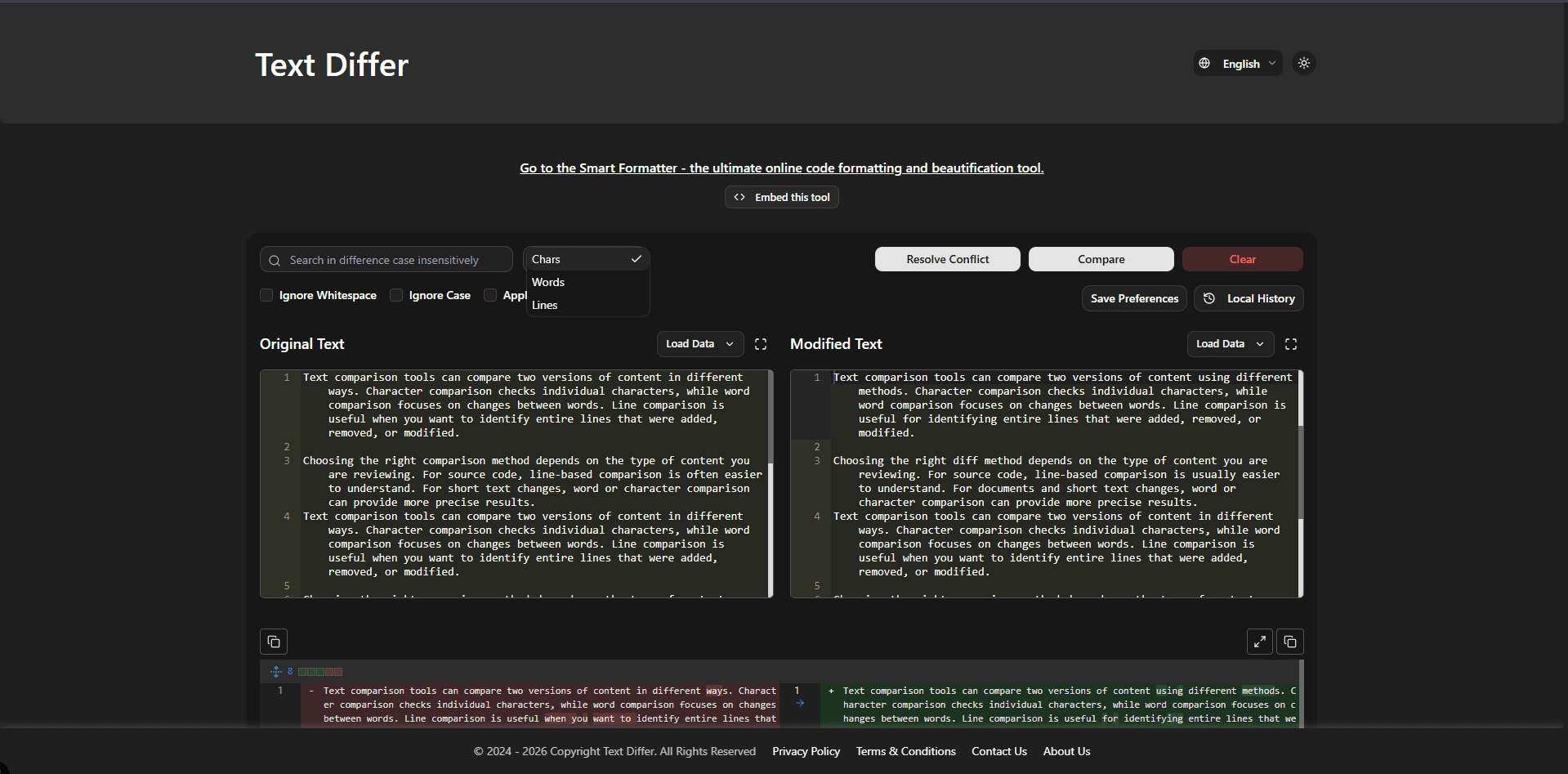
Each comparison method examines your content at a different level. Character comparison looks closely at individual letters, numbers, spaces, and symbols. Word comparison groups related characters into words so that wording changes are easier to recognize. Line comparison treats each line as a unit and is especially convenient for source code, configuration files, and other structured content. The best option depends on the kind of material you are reviewing and how precise the result needs to be.
How to Select a Comparison Method in Text Differ
- Decide what kind of material you are checking, such as an article, source file, configuration, or short text snippet.
- Place the earlier version in one editor and the newer version in the other.
- Choose Character, Word, or Line comparison according to the level of detail you need.
- Use available comparison options when differences in capitalization or spacing are not important to your review.
- Read the highlighted sections to identify inserted, removed, or modified content.
- Try another comparison method when you need to examine the same changes from a different perspective.
Useful Options for Different Types of Text Reviews
- Character-Level Inspection: Examine very small changes involving letters, digits, symbols, punctuation, or individual spaces.
- Word-Level Review: View changes around complete words and phrases without making every individual character difference the main focus.
- Line-Based Comparison: Review larger structural changes by treating individual lines as the primary units of comparison.
- Multiple Comparison Views: Move between comparison methods when one view does not provide enough detail or produces more information than you need.
- Case and Spacing Controls: Adjust the comparison when capitalization or whitespace variations should not distract from more meaningful changes.
- Visual Change Indicators: Highlighted results make it easier to distinguish content that has been introduced, removed, or modified.
Which Diff Method Fits Your Work?
- Character Comparison for Tiny Edits: Use this approach when one symbol, letter, number, or punctuation mark can affect the result of your review.
- Word Comparison for Written Content: This method is a natural fit for articles, drafts, emails, documentation, and other text where wording is more important than individual characters.
- Line Comparison for Structured Files: Line-based results can be easier to navigate when reviewing source code, configuration files, logs, or other line-oriented content.
- Switch Methods When Needed: A change that looks obvious at one level may require a closer look at another, so using multiple views can provide additional context.
- Reduce Unnecessary Review Work: Selecting a suitable comparison level helps you avoid sorting through details that are not relevant to the type of change you are investigating.
Conclusion
Character, word, and line comparisons are useful for different review situations. Character mode provides a close look at tiny edits, word mode works well for ordinary written content, and line mode offers a broader view of structured files. Text Differ lets you choose the level that best matches your task, making it easier to understand revisions without unnecessary visual complexity.