How to Compare Text from Files and URLs Without Manual Copying
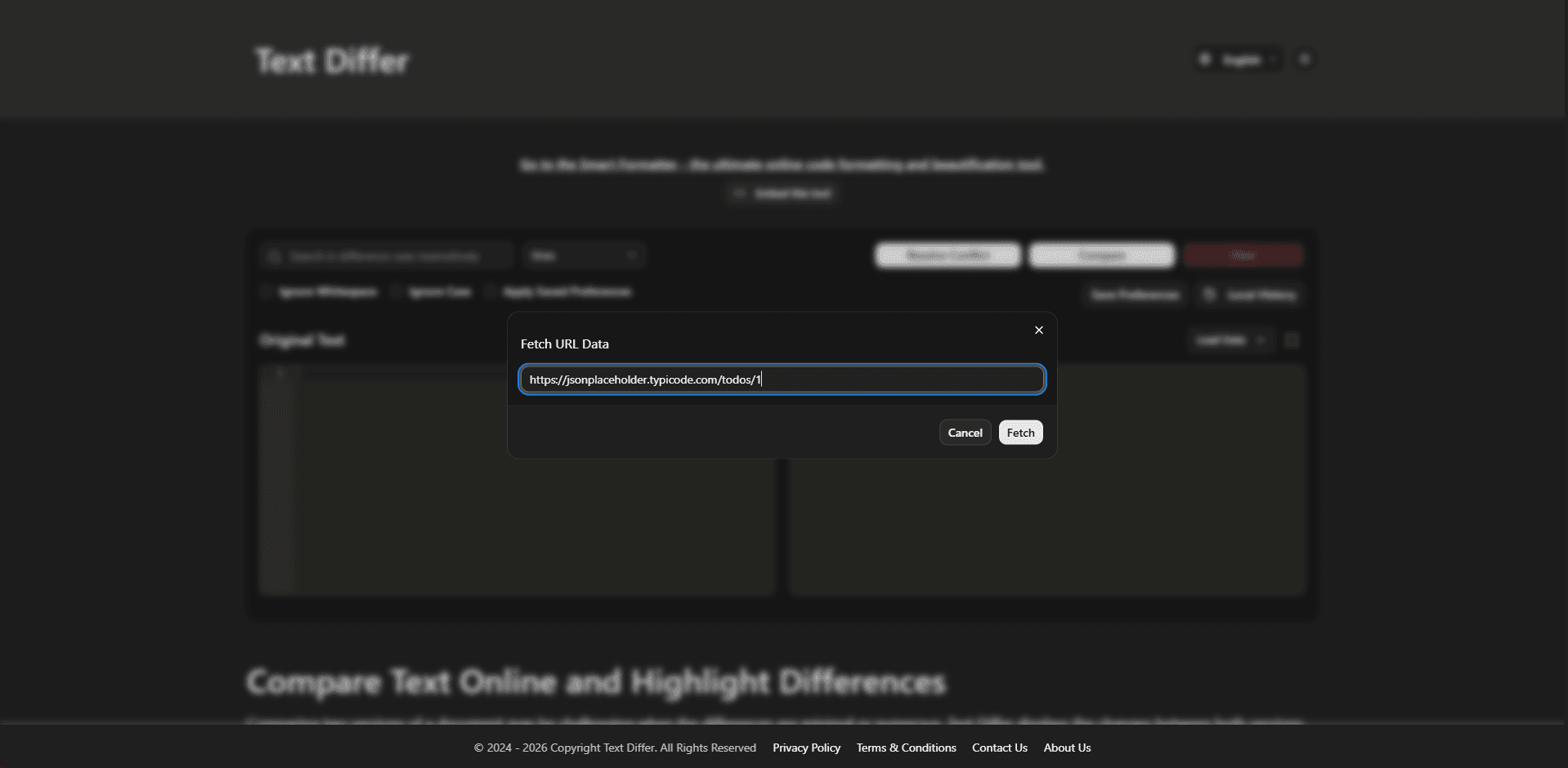
A Convenient Way to Bring Existing Content Into a Text Comparison
Preparing two pieces of content for comparison does not always mean typing or copying everything into an editor. Source files, saved documents, API responses, and other text-based resources may already exist somewhere else. Loading that content directly into a comparison workspace can make the review process simpler and reduce unnecessary preparation.
How Can Files and URLs Be Used for Text Comparison?
Text comparison can begin with content that is already available as a local file or accessible through a web address. A file-based workflow is useful when the versions are stored on your computer, while URL-based loading can be helpful when the text is available from an online resource. Once the content is available in the comparison editors, you can examine the differences using the comparison options provided by Text Differ.
How to Bring Content Into Text Differ
- Open Text Differ and prepare the two areas where the versions will be compared.
- Choose a saved text-based file when the content you need is stored locally.
- Use the URL loading option when the text you want to examine is available at an accessible web address.
- Check the loaded content to make sure the correct versions have been placed in the appropriate editors.
- Select a comparison method such as character, word, or line comparison.
- Review the marked changes and continue editing or copying the result as needed.
Ways to Bring Existing Content Into a Comparison
- Local File Loading: Start a comparison with content that is already saved as a text-based file on your computer.
- URL-Based Text Loading: Use an available web address as an input source when the content can be retrieved from that location.
- Two Different Input Sources: Use different sources for each side of a comparison when one version is local and another is available online.
- Multiple Comparison Levels: Examine imported content by characters, words, or lines depending on the type of change you need to find.
- Simple Review Workflow: Bring the content into the editors first, then use the comparison results to focus on sections that differ.
- Useful for Different Text Types: The workflow can be useful for plain text, documents, source code, structured data, and other supported content.
When Loading Files or URLs Can Make Comparison Easier
- Avoid Repeated Copying: Loading existing content can save time when working with long files that would otherwise require extensive clipboard operations.
- Review Saved Document Versions: Compare an earlier file with a newer copy to find edits made during document preparation.
- Check Online Text Against Local Content: A local version and an accessible online version can be examined together when you need to identify differences between them.
- Inspect Source Code Changes: Developers can use existing source files as comparison inputs when checking modifications between versions.
- Reduce Preparation Before Reviewing: Starting with existing content means less time is spent manually preparing large amounts of text before the actual comparison begins.
Conclusion
Getting content into the comparison workspace should not have to be a time-consuming part of the review process. Using files or accessible URLs as starting points can make it easier to work with existing text, source code, and documents. Once the content is loaded, Text Differ gives you a practical way to examine the differences between the selected versions.